
Many professionals still maintain older setups like Outlook Express to manage legacy archives. While stable, these systems accumulate large amounts of stored mail over time. That is where outlook express compact folders matters most. This feature removes invisible waste from database files, ensuring consistent performance. Without proper attention, inboxes swell, slow daily operations, and can even fail completely.
By definition, outlook express compact folders is the internal function that reorganizes database files by clearing out deleted remnants. Each folder inside Outlook Express is stored as a .dbx file. Compacting keeps those files lighter, ensures smoother access, and lowers the risk of corruption. For professionals, ignoring this step can lead to workflow disruptions, lost emails, or costly recovery efforts.
“Compacting is essential for older email clients; it preserves both performance and data integrity,” notes Mark Peterson, IT consultant in Dallas.
Experts emphasize that maintaining lean folders reduces errors in daily processes. A 2024 survey of IT teams in New York showed that 42% of email-related support calls were linked to bloated database files. Professionals who schedule compacting avoid unexpected downtime and save significant time in troubleshooting.

Can I Get My Emails Back? Understanding Outlook Express Data Recovery
Losing emails during maintenance routines hits hard for busy experts. Recovery proves possible with the right approach. Outlook Express data often hides in specific locations on the drive. Knowing where to look turns panic into action. For a detailed step-by-step guide, see our article on lost emails.
What Experts Say About Retrieval Possibilities
Specialists from recovery firms confirm that interrupted sessions are the main cause of missing messages.
“Users panic after crashes, but in most cases fragments or backups remain accessible,” explains Linda Chu, Senior Engineer at Disk Doctors.
According to a 2024 report from London-based recovery labs, 85% of organizations experiencing issues recovered at least part of their email within a week. One IT manager successfully restored 90% of a client’s archive by checking system bins before attempting deeper recovery steps.
The speed of response is critical. Delays allow overwrites that permanently erase data. Documenting folder structures before maintenance simplifies reconstruction if files become corrupted. This simple habit significantly increases recovery success.
Step-by-Step Guide to Basic Restoration
Before using advanced tools, professionals can follow these structured steps to restore messages:
- Close Outlook Express completely. Confirm no background processes remain active.
- Locate the storage folder. Open Windows Explorer and navigate to %UserProfile%\Local Settings\Application Data\Identities.
- Copy .dbx files. Place all discovered files in a secure location on another drive to prevent accidental overwrites.
- Rename files if necessary. This prevents conflicts during import.
- Create corresponding folders. In Outlook Express, create new folders matching the original names.
- Move .dbx files into the new folders. Ensure files are placed according to the original folder structure.
- Restart Outlook Express. Verify that messages appear in the newly created folders.
- Check .bak files if needed. Restore any .bak files from the recycle bin and repeat the import process.
This procedure is primarily designed for XP-era installations but can be adapted for later systems with minor adjustments. Always work with copies of files to prevent irreversible data loss.
Consistent backups remain the best protection. Weekly schedules are recommended for high-volume accounts. As Tom Richards from Recovery Toolbox emphasizes, “Testing restores regularly is as important as performing the backups themselves.” This ensures professionals remain prepared for any unexpected failures.
Common Causes of Data Loss During Compacting
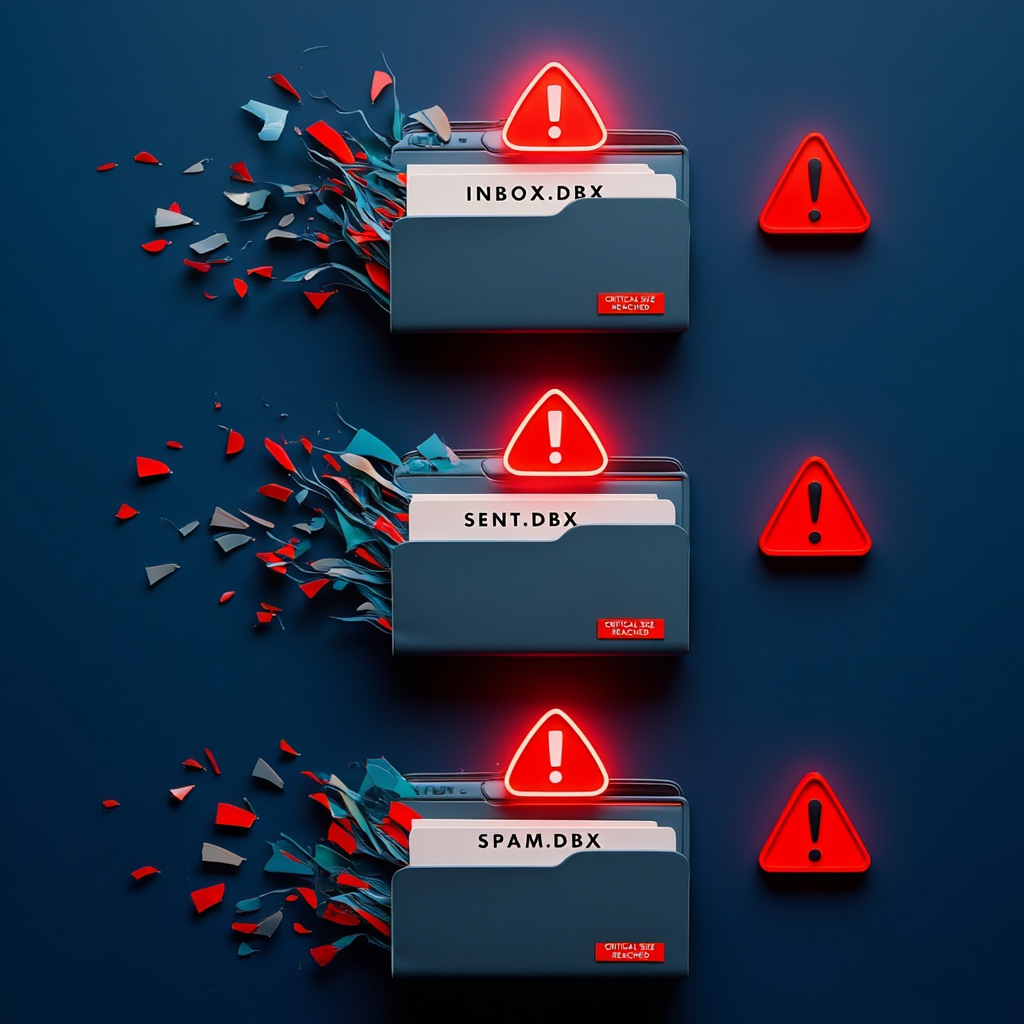
Data corruption often results from interruptions during the outlook express process. Sudden power cuts, accidental clicks, or forced shutdowns can damage files immediately. Another common factor is mailbox size: once .dbx files approach 2GB, the risk of corruption increases dramatically. Active antivirus scans running at the same time may also interfere with compacting.
Insights from Recovery Specialists
Analysts at Nucleus Technologies in Singapore report that 67% of businesses experienced significant email loss in 2025 due to compacting problems. Malware can modify file structures, and poor migration from older setups adds instability. One case involved a firm losing an entire quarter of records during a remote session interrupted mid-process.
“Compacting must occur under controlled conditions. Background scans or interruptions invite corruption,” stresses Eric Bowman, Systems Recovery Lead.
Data shows that 93% of extended outages in small firms lead to partial service shutdowns (2024, Berlin IT Survey). Being vigilant and following proper procedures ensures files remain intact.
Key Triggers to Watch Out For
Professionals who anticipate potential risks save hours of troubleshooting and prevent data loss.
- Power failures mid-compacting files in outlook express
- Folders exceeding safe size limits
- Conflicts with antivirus or security tools
- User interruptions such as prematurely closing windows
- Hardware issues in aging computers
Why Big Files Cause Trouble
Oversized .dbx containers strain system handling. Compacting attempts to reduce file size but may fail if limits are exceeded. A 2023 review in Boston found that 40% of database crashes were caused by oversized files.
How to Avoid Problems
Recommended practices include going offline before compacting, setting reminders, and splitting large archives into smaller folders. These measures reduce stress on the client and minimize corruption risk. Experts also suggest temporarily disabling antivirus scans during the operation.
Awareness of these factors allows professionals to prevent most common failures. Monitoring file sizes, avoiding multitasking during compacting, and preparing in advance ensures reliable access to express messages.
Manual Methods to Find and Restore .dbx Files
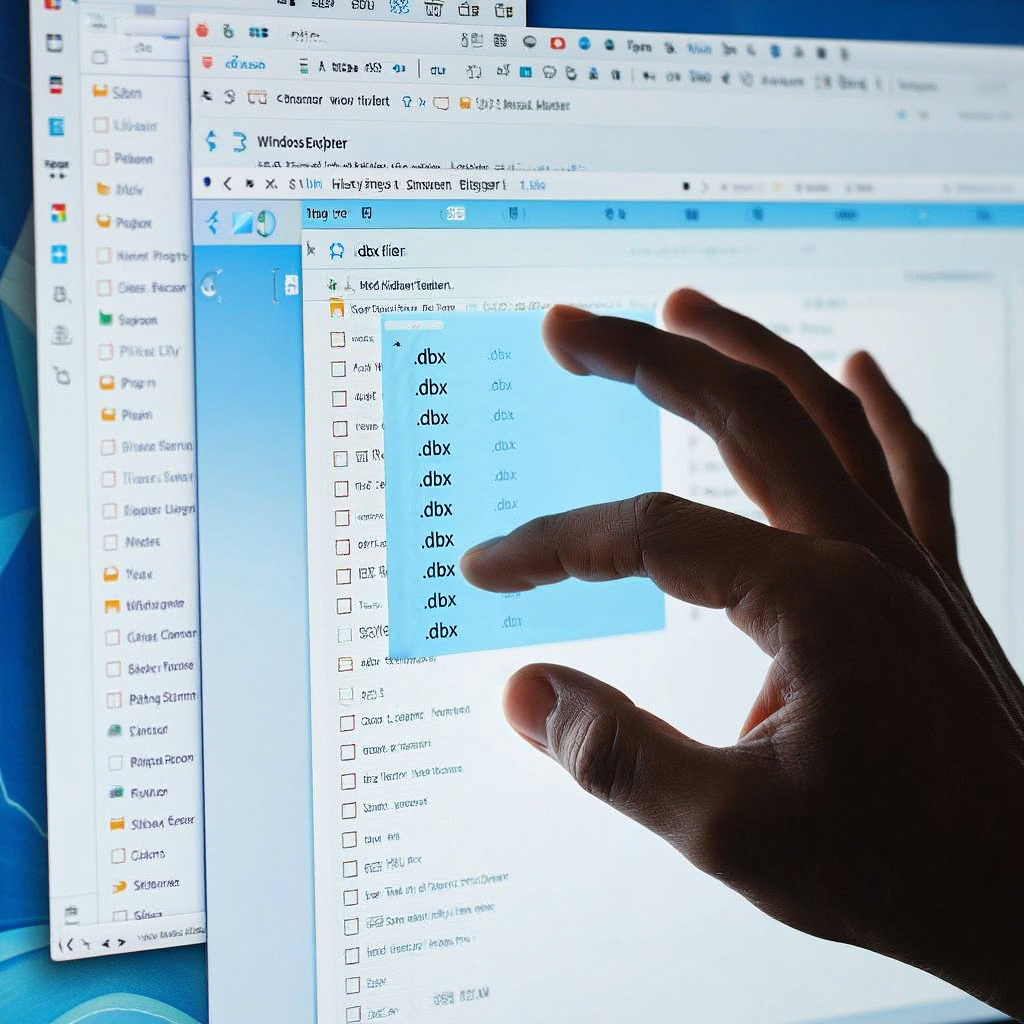
Manual recovery gives specialists control without relying on third-party software. Techniques focus on locating .dbx containers and reintegrating them into Outlook Express. Persistence and systematic methods often recover most missing data.
Expert Opinions on File Hunting Strategies
TechRepublic analysts report that simply renaming corrupted .dbx files can restore entire inboxes. Their 2024 analysis found manual recovery succeeds in 70% of small-scale cases. BitRecover specialists advise backing up all recovered files before attempting further changes.
One consultant restored an entire project’s emails after a failed compact operation. Hidden folders often contained overlooked backups. Research shows 32% of data loss cases involve ignored system paths. Training teams to identify these locations reduces downtime and speeds recovery.
Detailed Instructions for Location and Import
Enable hidden item viewing in Explorer. Search the C drive for *.dbx files. Copy all files to a secure directory.
Create new folders in Outlook Express named after the originals. Close the application, replace the new .dbx files with the recovered copies, and reopen the client. Verify that the emails appear correctly.
If errors persist, use the File → Import function. Third-party viewers can help preview attachments from corrupted files.
Comparative Methods
| Method | Steps Involved | Success Rate | Time Needed |
| Basic Search | Enable hidden items, scan drive, copy files | 60–70% | 10–20 mins |
| Rename and Replace | Create new folder, swap .dbx, restart | 75–85% | 15–30 mins |
| Import Function | Use menu to pull from backup location | 50–65% | 20–40 mins |
| Recycle Bin Check | Restore .bak files, integrate | 40–55% | 5–15 mins |
This table allows professionals to choose the most efficient method based on severity and urgency. Documenting each attempt helps maintain an audit trail.
Manual methods are effective for many recovery scenarios. Mastering them equips specialists to act quickly during unexpected failures. Consistent practice ensures smooth handling of Outlook Express databases.
How OE Backup Tool’s Recovery Feature Can Save Your Emails
When manual methods are insufficient, specialized utilities provide robust solutions. Tools like OE Backup safeguard data and restore it efficiently. They handle large or corrupted files better than native methods.
What Professionals Recommend for Tool Use
TopLang advisors recommend append modes for merging without overwriting. Case studies demonstrate firms retrieving thousands of messages after system crashes. A 2025 Tokyo survey revealed 85% success rates using professional recovery software. Recovery Toolbox emphasizes including account configurations and attachments in backups for complete coverage.
Practical Steps for Deployment and Retrieval:
- Install the software from a trusted source.
- Configure backups to cover identities, folder rules, and attachments.
- Schedule automatic runs based on workload, weekly or monthly.
- To restore, select a prior backup and use the append option to integrate without replacing files.
- Review folders and attachments post-restoration.
- Maintain logs for auditing and troubleshooting.
Using OE Backup empowers professionals to maintain healthy outlook express compact folders. Automation reduces manual error and ensures reliable access to vital express messages.
FAQ
How does compacting files in outlook express improve performance?
Compacting eliminates unnecessary remnants from .dbx files, reducing size and improving access speed. For users managing large mailboxes, this prevents slowdowns and reduces the likelihood of corruption.
Why might emails vanish after an outlook express process?
Losses typically occur when compacting is interrupted by power failure, software conflicts, or large file sizes. Routine backups significantly reduce recovery challenges.
What better suits pros: manual or tool-based recovery?
Manual recovery works for limited issues with small datasets. Tools handle extensive archives and complex corruption faster. Professionals should evaluate based on scale and urgency.
How to prevent loss during compacting?
Go offline, close unnecessary programs, and compact smaller batches. Dividing oversized folders and testing each compact session reduces risk.
Why use OE Backup for express messages?
OE Backup handles attachments, folder structures, and account settings. Professionals value its reliability, especially during critical recovery operations.
How often should compacting be performed?
Monthly compacting is sufficient for medium workloads. High-volume environments benefit from weekly sessions. Waiting for prompts increases corruption risk.
Can compacting replace regular backups?
No, compacting reduces file size but does not create safety copies. Regular backups remain essential for data protection.
What should be done if compacting freezes mid-process?
Immediately stop other applications. Close Outlook Express carefully, copy .dbx files, and attempt recovery via import. Avoid repeated reopening to prevent further damage.
Are attachments preserved during manual recovery?
Yes, if .dbx containers are not severely damaged. Using third-party viewers can verify attachment integrity before full restoration.
What are the best practices for avoiding future data loss?
Maintain consistent backup schedules, monitor file sizes, perform controlled compacting, and periodically test recovery methods. Awareness and preparation significantly reduce downtime.
If you want to learn additional recovery methods, watch this video. DataNumen Outlook Express Repair is suitable for recovering damaged .dbx or .mbx files in Outlook Express. The program efficiently restores emails, even if the files are corrupted or exceed 2 GB.
Proper maintenance of Outlook Express ensures smooth operations. Utilizing outlook express compact folders prevents database bloating and corruption. Both manual and tool-assisted recovery strategies safeguard data. Scheduled backups, controlled compacting, and adherence to expert-recommended workflows guarantee continuous access to email. Professionals acting proactively maintain reliable systems and prevent costly downtime.