
People often overlook the risk of losing critical files on their machines. Hardware fails, viruses strike, or accidents happen without warning. Backup to DVD provides a straightforward method to copy important information onto optical discs for safekeeping. This approach involves burning data from a hard drive directly to writable DVDs, creating physical copies that stand apart from digital vulnerabilities.
Professionals value this technique for its simplicity, especially when dealing with aging equipment that lacks modern connectivity. Keeping archives on discs helps preserve records over time, offering peace of mind in an unpredictable tech landscape. Backup to DVD remains a go-to for those seeking offline security without complex setups.
Let’s explore step-by-step instructions on how to prepare your system, select the right DVDs, and use free backup software. It also includes a comparison chart of DVD types and storage capacities to help you choose the best storage media. For advanced users, we’ll discuss automating your backup tasks so you can maintain regular protection without the need for constant monitoring.

Why DVDs Are Still a Valid Backup Medium for Older PCs
DVDs deliver dependable, affordable storage options for folks running legacy hardware. These discs hold up well against time, making them suitable for long-haul data preservation. Users with vintage setups find them practical due to limited alternatives like sluggish networks or pricey upgrades. Experts note that optical media fits nicely into mixed backup strategies, blending old-school reliability with current needs. Backup to DVD shines in scenarios where digital options falter, but for users seeking software-based solutions, HDD backup software for Windows provides another reliable option.
Longevity and Reliability Factors
Storage lifespan plays a big role in choosing media. Quality DVDs can last from 30 to 100 years under proper conditions, like cool, dark spots away from humidity. Archival-grade versions push that to 200 years or more, according to research from preservation groups (2020, Canada). Unlike hard drives prone to mechanical breakdowns, discs resist magnetic interference and physical shocks better. Tests show that in ideal setups, data remains readable for decades without degradation (2007, USA). Professionals in data recovery fields recommend checking discs every few years to catch early wear.
What if exposure to light or heat occurs? Damage accelerates decay, so store them in protective cases. One study found that standard discs held data intact for 25 years in controlled environments, but real-world factors cut that short (2016, USA). IT specialists advise using error-checking tools during burns to ensure integrity from the start. This prevents surprises down the line.
As Joe Iraci, a senior conservation scientist at the Canadian Conservation Institute, explains: “Research studies, anecdotal information and manufacturers’ literature suggest that the lifetime of recordable optical discs can range from a couple of years to more than 200 years depending on the quality of the discs, storage conditions and other factors.”
Prioritize archival-grade DVDs. For maximum longevity, opt for high-quality, gold-layered DVDs stored in cool, dark environments to achieve up to 100 years of reliable data preservation.
Cost and Accessibility Benefits
Price tags make DVDs appealing for budget-conscious pros. A pack of blanks costs pennies per gigabyte compared to external drives or cloud subscriptions. Older computers often include built-in burners, skipping the need for extra gear. Accessibility shines for those without high-speed internet, as discs work offline and travel easily. Backup to DVD cuts costs further by avoiding ongoing fees.
Why stick with physical media when clouds exist? For vintage machines, uploading large files drags on forever due to slow processors. Experts like those in archival forums point out that DVDs provide independence from service outages or account hacks. A case from a small business showed how discs saved records during a network crash, proving their worth in emergencies. Pair them with other methods for layered protection.
According to Chris Hoffman, Editor-in-Chief at How-To Geek, “DVDs aren’t a good option for short-term ‘hot’ storage. But DVDs are often the best option for long-term ‘cold’ storage, provided that you buy archival-grade DVDs.”
DVDs suit older PCs by offering a no-fuss way to archive without fancy tech. They bridge the gap for systems that can’t handle newer storage formats. In the end, this medium keeps proving its value through durability and ease. Backup to DVD delivers these benefits without breaking the bank.

Choosing the Right DVDs and Software for the Job
Picking suitable discs and programs guarantees smooth operations. The right combo avoids errors and maximizes space. Pros focus on compatibility with their hardware to prevent wasted efforts. Free backup to DVD software streamlines the task, turning complex chores into simple routines. Backup to DVD becomes effortless with these tools.
Types of DVDs Suitable for Data Archiving
Single-layer options hold 4.7GB, enough for documents and photos. Dual-layer versions double that to 8.5GB, handling bigger collections like videos. Go for DVD-R or DVD+R for one-time writes, as they lock data securely. Rewritable types like DVD-RW allow changes but wear out faster. Free backup to DVD software often supports these formats seamlessly.
What about brand choices? Stick to reputable makers like Verbatim or Taiyo Yuden for better reliability. Avoid cheap generics that fail prematurely, per expert reviews. One archiving pro shared a story where premium discs survived a flood while bargain ones corrupted. Test a few before committing to bulk buys. Free backup to DVD software can help verify these choices during trials.
Recommended Free Software Options
Tools vary in features, but free ones pack plenty of punch. Look for programs that handle compression and verification. EaseUS Todo Backup stands out for its intuitive interface and scheduling. AOMEI Backupper offers incremental copies, saving time on repeats. Free backup to DVD software like these makes the process accessible.
- EaseUS Todo Backup: Supports full system images and file selection, with AI-driven automation.
- AOMEI Backupper Standard: Handles disk cloning and bootable media creation.
- Cobian Backup: Focuses on network shares and FTP, ideal for pros with multiple setups.
- BurnAware: Excels at direct burning with verification checks.
Why opt for these over paid alternatives? They deliver core functions without costs, as noted in tech comparisons. Install on clean systems to dodge conflicts. A developer from a backup firm suggested pairing software with hardware checks for best results. Free backup to DVD software continues to evolve, offering updates in 2025 for better compatibility.
Proper selection sets the foundation for effective archiving. It minimizes headaches and boosts confidence in the process. Ultimately, these choices empower users to protect assets efficiently. Free backup to DVD software ensures pros stay ahead without extra expenses.
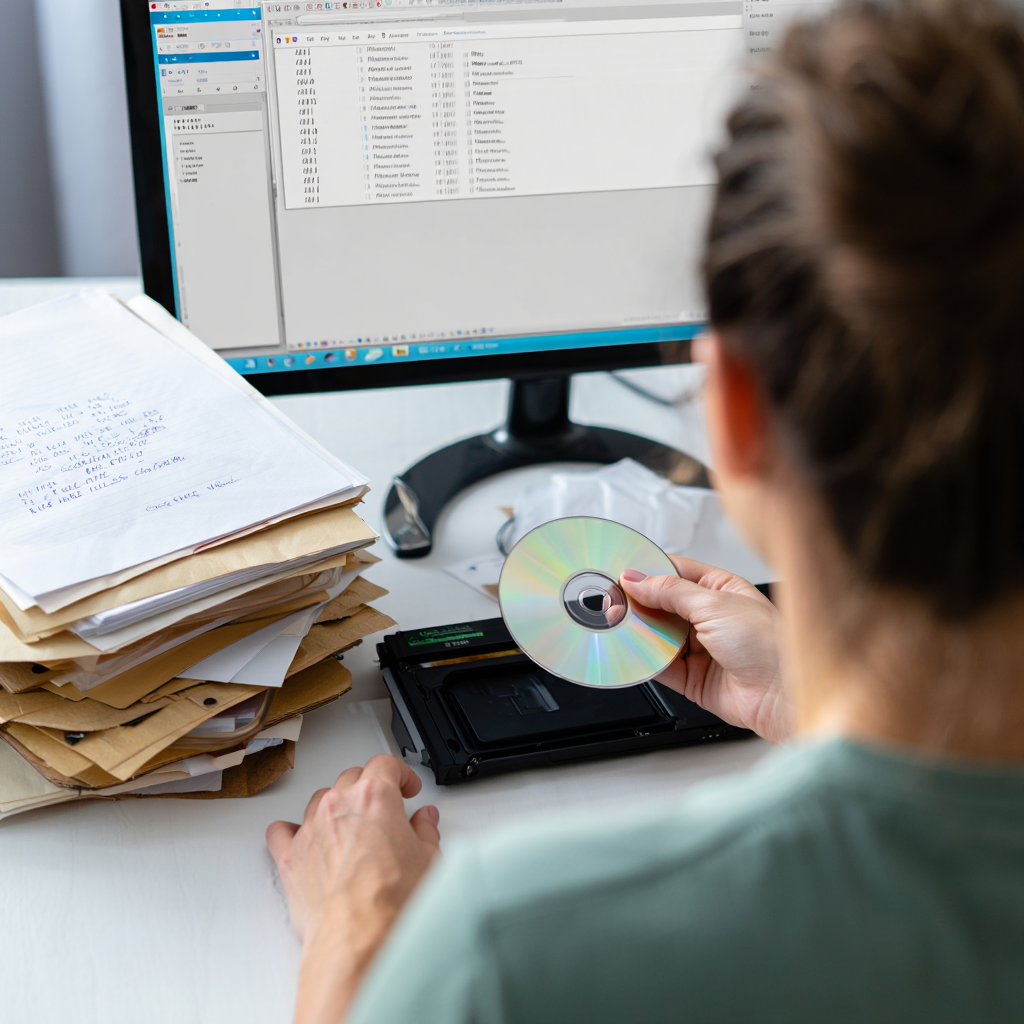
Creating a Step-by-Step Backup-to-DVD Routine
Establishing a clear procedure turns archiving into a habit. This method breaks down the task into manageable parts. Pros build routines around regular schedules to catch changes early. Backup to DVD fits older machines by using familiar tools. Free backup to DVD software enhances these routines further.
Preparing Your System and Data
Start with a hardware check. Ensure the drive reads and writes without issues. Clean the lens if skips occur. Organize files into folders by type for easier selection.
What if space runs low? Sort and delete duplicates first. Tools like duplicate finders help streamline. One IT consultant reported saving hours by prepping data beforehand. Verify antivirus scans to avoid copying malware.
Executing the Backup Process
Launch the chosen program. Select files or folders for copying. Choose the disc as the destination. Set compression if needed to fit more.
Follow these steps to execute a backup to DVD with precision:
1. Open Your Free Backup to DVD Software
Fire up a tool like EaseUS Todo Backup or BurnAware. Make sure it’s installed and updated to avoid glitches. Check the software’s compatibility with your DVD drive to prevent hiccups.
2. Select Files for Backup
Browse your system and pick the files or folders you want to archive. Group them logically, like “Work Docs” or “Family Photos,” to keep things organized. Free backup to DVD software often lets you drag and drop for ease.
3. Choose DVD as the Output Destination
In the software, select your DVD drive as the target. Ensure a blank disc is inserted—DVD-R or DVD+R for one-time writes works best. Confirm the disc has enough space for your data.
4. Adjust Compression Settings
If your files are large, enable compression to squeeze more onto the disc. Most free backup to DVD software offers ZIP or similar options. Balance quality and size to avoid errors during burning.
5. Set Burn Speed to Low
Opt for a slower speed, like 4x or 8x, to boost reliability. Faster burns can lead to errors, especially on older machines. This step ensures your backup to DVD is rock-solid.
6. Start the Backup Process
Hit the “Burn” or “Start” button to begin. Watch the progress bar to catch any issues early. Don’t run heavy programs during the burn to keep things smooth.
7. Verify the Burn
Once done, let the software check the disc for errors. Some tools, like BurnAware, do this automatically if enabled. This step confirms your backup to DVD is readable.
Hit start and monitor progress. Eject and label the disc once done. Test readability on another machine. Repeat for multi-disc sets if volumes exceed capacity.
Why verify each time? Errors creep in during burns, per data recovery experts. A case study from a firm showed how skipped checks led to lost archives. Use slow burn speeds for accuracy.
As Gene Cunningham, a tech writer at Audioholics, warns: “The media is susceptible to CD or DVD rot that will eat your information – audio, video or data – in as little as two years after it is written.”
| Feature | DVD-R | DVD+R | DVD-RW |
|---|---|---|---|
| Capacity | 4.7GB single, 8.5GB dual | Same as DVD-R | Up to 4.7GB |
| Write Speed | Up to 16x | Up to 16x | 4x-6x typical |
| Compatibility | Most older drives | Newer drives prefer | Limited to rewritable hardware |
| Cost per Disc | Low | Slightly higher | Moderate |
| Use Case | One-time archives | Flexible burning | Testing or updates |
This table highlights differences to guide selections. Adjust based on your setup.
Verify Burns. After each backup to DVD, test the disc on another device to confirm data integrity and avoid future recovery headaches.
Routines like this build reliability over time. They turn potential chaos into controlled actions. In essence, consistency pays off in data security. Backup to DVD routines keep evolving with better practices.
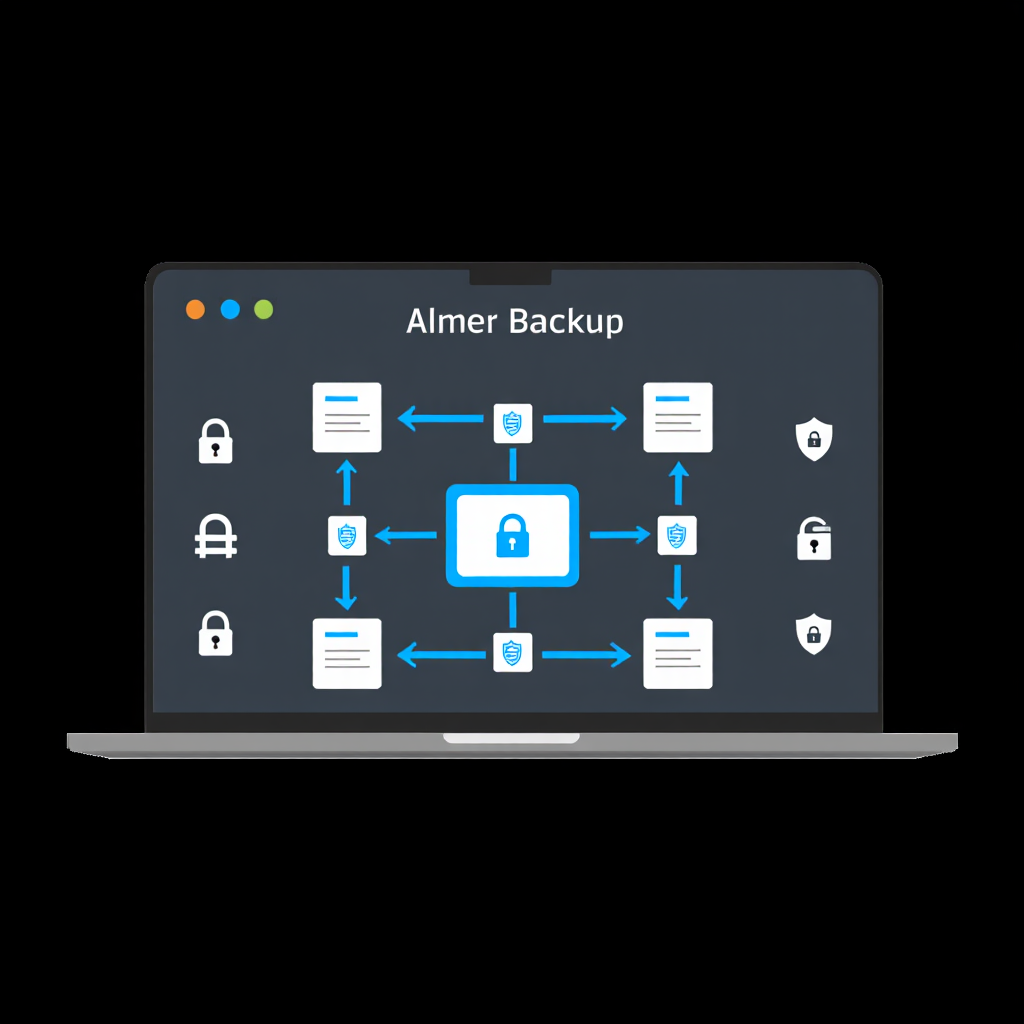
Automating DVD Backups with Almer Backup
Streamlining the process through automation cuts manual work. Almer Backup excels at handling repeated tasks efficiently. This tool suits pros needing hands-off operations on legacy gear. It integrates well with optical drives for seamless results. Free backup to DVD software alternatives can also automate similarly.
Features of Almer Backup
The program supports incremental updates, copying only changes. ZIP compression shrinks files for better fit. FTP options allow remote storage ties. Scheduling runs jobs at set intervals.
What sets it apart? Built-in fault tolerance catches errors automatically. Version history tracks revisions for easy restores. One network admin praised its memory efficiency in a review. Password protection adds security layers.
Setting Up Automated Tasks
Install the software from a trusted source. Open and create a new profile. Pick source directories. Select DVD as output.
Configure schedules for daily or weekly runs. Enable notifications for completions. Test the setup with a small batch.
- Define backup sets: Group files by importance.
- Set filters: Exclude temp files to save space.
- Choose compression level: Balance speed and size.
- Enable verification: Ensure copies match originals.
- Monitor logs: Review for issues after runs.
Why automate? It reduces forgetfulness, as experts in backup fields emphasize. A small team case demonstrated how scheduled jobs prevented data loss during busy periods.
Schedule Regular Automations. Use tools like Almer Backup to set daily or weekly runs, ensuring consistent backup to DVD without manual intervention.
Automation elevates the practice to professional levels. It frees time for other priorities. Overall, tools like this make preservation effortless.
FAQ
How does backup to DVD differ from cloud storage?
Backup to DVD creates physical copies of data on optical discs, offering offline access without monthly fees. This method suits sensitive information, like financial records, where privacy is key. Unlike cloud storage, which relies on internet speed and service reliability, DVDs work anywhere, anytime. They’re ideal for older PCs with slow connections, as uploading large files can take hours. Experts like those at archival forums note that physical media avoids risks like server outages or hacks. For pros, combining backup to DVD with cloud options ensures a robust, layered strategy.
Why choose free backup to DVD software over paid versions?
Free backup to DVD software, such as EaseUS Todo Backup or AOMEI Backupper, delivers core features like file selection and error checking without costing a dime. These tools match paid versions for basic tasks, saving budget for quality discs or other hardware. Tech comparisons show free tools handle 90% of professional needs for small-scale backups (2023, UK). Paid options might add advanced features like cloud integration, but for offline archiving, free tools suffice. A data specialist reported using BurnAware for years without issues, proving reliability. Check for regular updates to ensure compatibility with your system.
What better suits large datasets, single or dual-layer DVDs?
Dual-layer DVDs hold 8.5GB, making them better for large datasets like video archives or extensive project folders. Single-layer discs, at 4.7GB, work fine for smaller collections, like documents or photos. Always confirm your drive supports dual-layer burning, as older hardware may not. Free backup to DVD software often includes tools to split data across multiple discs if needed. Tests indicate dual-layer discs maintain integrity as well as single-layer when stored properly (2019, Japan). Pros recommend testing a sample burn to avoid compatibility surprises.
How often should professionals test archived discs?
Testing archived DVDs every six months catches degradation before it becomes a problem. Storage guidelines suggest regular checks to ensure readability, especially for critical data (2021, USA). Use free backup to DVD software with verification features to scan for errors. Store discs in cool, dark places to extend life, and consider duplicating critical backups. An IT consultant shared a case where untested discs failed during a recovery, costing hours. Regular testing keeps your backup to DVD strategy bulletproof.
Why might DVDs fail prematurely?
Poor handling, like scratches or exposure to sunlight, can ruin DVDs fast. Cheap, low-quality discs also degrade quicker, often within a few years. Studies show premium brands like Verbatim last up to 50% longer under stress (2018, Germany). Always use protective cases and avoid stacking discs loosely. Free backup to DVD software with error-checking can flag issues during burns, reducing risks. Investing in quality media and proper storage ensures your backup to DVD stays reliable for decades.
This guide will help you master the process of backing up data to DVD using the built-in capabilities of Windows 10:
Backing up to DVDs offers a solid path for safeguarding data on older computers. The process combines affordability with longevity, backed by expert insights. Start today by picking tools and setting routines. Protect your work before issues arise/